
SharePoint Features You Should be Using, But Probably Aren’t

It doesn’t matter if you’ve been using SharePoint for a few weeks or a few years, chances are you’re not familiar with all of its features. Maybe you know about some features, but you’re not using them. With that said, here are a few SharePoint features you should be using, but probably aren’t.

WorkFlows

If you aren’t using WorkFlows you should. A workflow is a group of tasks, as well as decision points that can lead to several outcomes or just one. Workflows are a lot like flow-charts, and there are many templates to choose from within SharePoint. Adding a workflow is easy, but there are four roles associated with it.

The roles are creator, author, initiator and participant. If you want to manage and complete tasks with ease and stay on top of everything, then start adding workflows today.

 SharePoint Lists

SharePoint lists are another feature that everyone isn’t taking advantage of. There are two main ways to manage information with SharePoint, with one being a library and the other being lists. Lists are similar to spreadsheets because columns and rows make them up. However, these lists are within SharePoint and not in Excel and many people have access to it at the same time.

Allowing multiple people to access SharePoint lists saves time because you don’t have to email them individually to people. Also, you don’t have to keep track of changes being made from users. You will love using SharePoint lists much more than spreadsheets.

Also, creating lists and reviewing them is easy. The same goes for updating and deleting them. All you have to do is click on the Add Lists section of SharePoint.

Libraries

Libraries are useful because you can use them for various tasks. You can use them to filter out data, store data and modify it. You can even group data and you can capture meta data.

Team members can use libraries to work together to create files, update those files when needed and collect files. SharePoint provides you with a number of default library apps you can use, so check them out and become familiar with them. The chances are that libraries will become one of your most favorite features.

Creating a library is simple. Go to the SharePoint Class site. Once there, go to the pane that mentions libraries. Click on the link and you’ll be well on your way to creating a library.

Search

SharePoint has a search feature that you’re probably not using. This basic feature lets you find queries that are placed against the data stored in the server farm. In short, this helps you find a lot of relevant information with ease.

Search results can contain a lot of info, such as links to your list items and libraries that you’ve created. It can even point you to links to sites and individual web-pages, as well as documents. The search engine that SharePoint uses takes many things into account, such as your previous searches and permissions, which play a role in what results they will return to you.

Project Site

Use the Project Site template to help with managing work. You can use this to help with task lists, calendars and creating a document library. This is a basic SharePoint feature, but a lot of people don’t add project sites to SharePoint and they should because it is incredibly useful.

Are you using any of the above features? If not, then you should start as soon as possible. Trust us when we say you don’t know what you’re missing. Go ahead and start using them today and the chances are you won’t stop using them.
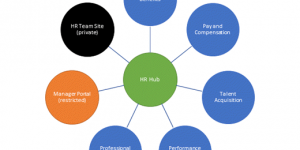
What is a SharePoint Hub Site and Why Should You Use One?

Hub sites in SharePoint exist to allow organizations to connect multiple sites and organize them into categories based on various criteria. That could be division, department, project, region, or many other factors.

SharePoint Hub Sites:

– Improve the discover-ability of content

– Allow companies to apply consistent branding and structure, as well as navigation, across several sites

– Offer the ability to search across multiple, related sites

SharePoint administrators have the ability to dictate how many hub sites can exist, and to control who has the option of associating their sites with a given hub. If a site creator associates a site with a hub then the site will acquire a ‘hub site’ nav bar at the very top. It will also inherit the look of that site, and any applications or custom lists which are associated with it.

Who Can Manage Hub Sites?

Only SharePoint administrators can create hub sites. A Site collection administrator has the option of associating a SharePoint hub site with an existing hub site, but they cannot create a new hub. If an administrator clicks the ‘create site’ link that is located in the upper-right corner of an existing hub site, then that new site will automatically be associated with the hub.

Shared Navigation and Search

The main reasons that you should use SharePoint hub sites are the shared navigation option, and the cross-hub search. These two features ensure that people can find the content that they need. Hubs also help to create a cohesive brand across all sites and save time when it comes to searching too.  Users will see the content that is presented on the hub sites, without having to worry about going to each site individually. SharePoint will handle security and access rights automatically, so individual users will be shown only content that they are allowed to access.

Easy for Administrators

SharePoint hub sites are easy for administrators to develop. When an administrator creates a hub site, what they are really doing is converting their existing site into a hub. The hub site navigation bar will be placed at the top of the site, but the home page and the content of the site will be preserved.  If that’s all you do when you make a hub site, then you will still enjoy some benefits because of the network search and the ease of access to other sites in the network through the nav bar, but you are missing out on some useful features.

SharePoint offers Web Parts that are handy widgets which you can add to your site to add more features. One of the most useful web parts is the News web part. This will aggregate the news from the sites that are a part of the hub and show it on the home page. You can select which sites will be included in the web part, so that the news remains as relevant as possible and so that very active sites don’t drown out the other sites on the hub. Again, SharePoint will not show a user News if it is from a property that they don’t have the rights to view.

Other useful Web Parts include Events and Highlighted Content. These are good ways of showing off the most important content that is being created on the sites in the network.

Planning a Hub

If you’re new to online collaboration and communities, then deciding how to organize your network of content may be tricky. Hub sites are very useful, but you need to have an overarching idea of what you want on the intranet. Think of the hub sites as the connective tissue that will hold the separate team sites together. Ideally, anything that is going to be the focus of a lot of effort and communication deserves its own hub site. So, if you are a software development company and you have three separate projects, each project would have its own site collection. A hub site brings together several other sites.

You might want to have separate sites for your art team, UX team, backend team, etc.

Prior to hub sites, subsites were used to provide the ‘connections’ for the rest of the intranet. Subsites are inflexible, though, and relying on them makes it hard to make changes in the future. Should you need to restructure, you will have to change a lot of links and a lot of content. Subsites are harder to control in terms of security policies too. A hub site can be updated, changed, managed and reclassified much more easily, and is therefore comparatively future-proof.

If you think about how often staff members change teams, projects get started or abandoned, and working relationships change, it makes sense to use hub sites instead because they cover all of those awkward management challenges for you, providing a smoother experience for your team members.

5 Reasons to Upgrade to SharePoint 2019


If you are running a business, it is important that you keep all of your software up to date, With that said, the task of upgrading can be daunting and time consuming. This causes some organizations to delay upgrading until the last minute. Here are 5 reasons to move from your current version of SharePoint to SharePoint 2019.

Improved Support

It can be really complicated to move lots of business data onto the cloud without incident. Microsoft has improved this functionality in the latest version of SharePoint. The 2019 version is better because there is a huge focus on automation and it utilizes new technologies to make sure that everything runs more smoothly.

Lists

This is one of the newer features that in included with the new version of SharePoint. It creates an easier path for businesses to share, collaborate and gain access to all of the data they need. Since people will now have the ability to make lists and group information accordingly, it will be simpler to understand and have people work together rather than people becoming confused about order, how information should be used, access issues or some other problems.

The New Search Experience

It is now easier to search for the things you need when using SharePoint. Instead of a basic search, you are now able to see results before you even begin to type anything. In addition, once you start to spell out the term you are looking for, the results begin to update automatically. These searches are even grouped by type, so it should be much easier for all of the people who use this feature to find exactly what it is they are looking for.

Your Competition

Face it. When you are in business, it is important for you to stay ahead of the curve and be one or more steps ahead of the competition. There is no way for you to do that if you are still using software that was created more than 5 years ago, especially if everyone around is using the newer version. Do not allow your hesitancy to upgrade and stay with what is familiar to you to cause you to miss out on all of the benefits this new SharePoint can offer your business. Upgrading means that you will be ready to provide best in class service and applications using the latest technology..

Retired Features

One thing that everyone should look forward to with SharePoint 2019 is the fact that some of the features that were not very useful have been shelved. This means it is more user-friendly and has left room for them to add additional features that people may actually find useful. For instance, the aggregate news-feed has become read-only. This is a feature that many people have complained about, so it is nice that Microsoft has taken notice and made it go away. Surely, there are some who liked it, but for the majority it was a headache.

If you have not given serious thought to upgrading to the new version of this program, then why not? Don’t get left behind.Instead of continuing to use something that is just okay, why not attempt to use something that is totally dynamic? Your business may be doing well right now, but imagine how much better you could be doing if you decided to make the switch.

SharePoint Integration With Microsoft Flow

When it comes to electronic technology programs have come a long way.  This is no truer that if you can remember the first offerings from both Microsoft and Apple that contained the kernels of the programs that they have nurtured and raised until today these programs are feature rich and basically indispensable to a huge range of companies which include the top level of fortune 500 companies.

These feature-rich applications complete each of their functions amazing and now we are beginning to see some of these moves into partnership status with other programs.  An example would be Microsoft’s Excel that does a magical role by itself but is now teamed up with Microsoft Access as a completely integrated system with Excel providing front-end data solutions and Access tying into the backend to have its database capabilities further manipulate that data.

It is in this type of application marriage that we see Microsoft’s SharePoint now beginning more closely aligned with Microsoft Flow, an application that on its own does a great job but becomes a stronger tool when used as a backend to SharePoint.

What Is SharePoint?

SharePoint is Microsoft’s document management and collaboration program that combines an intranet platform to allow documents to be better managed in a number of circumstances.  For example, documents are much more easily located, shared, updated and much more.  It allows companies to compile and regulate documents and many other pieces of the companies document structure while having the ability to disseminate this information across multiple platforms such as the internet, extranet, and intranet sites.  It also allows large organizations to partition those information areas that belong to specific company areas, such as assigning the HR department security closed to allow those documents that solely relate to HR or where the organization ownership resides.  In other words, its purpose is to align with documents while Excel is to align with numeracy.

What is Microsoft Flow?

Microsoft Flow or just Flow is one of the newer applications that Microsoft has made available to handle a completely different range of functions with documents and even snippets of documents.  Flow, as its name suggests allows you to streamline a range of functions through self-created automation which is easily handled by its clever graphical interface.  In other words, it picks up a lot of the corporate heavy lifting once documents have made their way into and through the stages of SharePoint.

For example, one of the very cool features for Flow is that your designed workflow can integrate with a large range of third-party applications that are specialized for various communication styles.  Think Twitter, Facebook, Instagram and many more.  If your company has a use for Twillo, then this can be added to your content outgoings.  Dropbox, outlook, Google Calendars and more are now a part of your range of tools.  For users of Go To Meetings, RSS and Gmail, each of these are also third-party services that integrate into the endpoint.  In fact, there are 295 of these services that you can have Flow interact with to get your messages out faster and further than ever before.

SharePoint And Flow Integrated

I truly hope that you are excited enough about future possibilities when the integration between SharePoint document management front end and Flows integrated delivery and architectural creative options available for your future campaigns.  While it may take corporations some time to truly grasp the power of this integration, in time this will become an invaluable tool to them and those team members responsible for the inner workings and training of companies in how to squeeze the most from this marriage will be in a position to sell their knowledge and talents for a very good income, that is how powerful I believe that the integration can become in time.

If I think back to the beginning of this article and refer to the initial offerings of Microsoft and Apple as startups, you can see from Microsoft’s perspective that continuing to invest and grow and better define each of their business offerings has now led them to the next stages of development.  What more can come from the coupling of these once great standalone programs?

I expect that the answer to that will be in the take up from a business perspective and once more companies are using, the types of user-based inquiries and suggestions that will fall out from the natural usage of these tools.  In the meantime, Microsoft is working hard behind closed doors to roll out its next technical conquests.  We know that they are currently devoting resources to AI interfaces such as Cortana extended capabilities and one can only imagine that it will tie more of their offerings together with an enhanced AI range of functionality across each of their platforms.  The future is truly exciting.

SharePoint CRM Information

Why would a person need SharePoint CRM or Office 365? Many clients and website owners are searching for SharePoint CRM systems that will offer a variety of solution approaches in the market. The majority of these people will want their SharePoint CRM to already be running on Office 365. They have heard about the easy and smooth integration of existing data, workflows, and processes.

A key advantage when using these platforms is Single Sign On. This unique integration provides a corporate active directory. The good news for clients and website owners is that this platform already exists and will not require any additional investments so as to have a base for a CRM new business app.

It should be noted that CRM is quite difficult to build from scratch because of its many complexities. If you are trying to construct a direct competitor such as Salesforce, SAP CRM, Microsoft Dynamics, for a CRM system then the headline must be right. However, this is something that most people will not want to do from scratch.

When you look at the average customer you will discover that their CRM processes will typically consist of a few simple business objects that have a master detail relation. The more complex processes will require some sort of permission and workflow. Even the highly sophisticated ones require flexibility so that they can offer adequate creation processes. For anyone who is using it for campaigns it should be noted that the requirements for a smooth integration with some newspapers, campaign providers, or emails can be extremely limited.

You will find a repetitive pattern in the majority of CRM systems. SharePoint lists will require standard business objects that are represented in a SharePoint content type. Some of the basic objects that you will require for CRM and for SharePoint include lists of accounts, contacts, activities, opportunities, and campaigns.

In the account column you will need the content types prospects, customers, and suppliers. In the contacts column you will need the content types executives and employees. In the activities column you will need the content types note, calendar item, email, and activity. In the opportunities column you will need the content types forecast, offer, opportunity, and lead. In the campaigns column you will need the content types email, print, newsletter, and email.

There are two reasons why you will require different content types. The first reason is if you require a lifecycle on data such as with the example, prospect to customer. The second reason is if there are different attributes for any content variance such as activity or calendar item. By having different content types in a list it will allow the user to navigate data very easily. It will also allow the user to create various search scenarios that make it simple to navigate data.

For example, let’s say you are searching for sales opportunities but you are not exactly sure if what you find is a sales opportunity, an offer, somebody’s forecast, or a lead. When you use content types you can simply search in Opportunities and this will provide you with all relevant matches. Each of the items displayed will only be relevant data for your search.

Another feature to this type of approach is that you will now be able to create various lookups between the content types for all relations. Since a contact is normally bound to an account, you will benefit by having a lookup field for any of the accounts in the contact list. You can repeat this for any relation that is logical and beneficial for your particular scenario.

Now that you have created a data model it is time to think about the next step. The next step will be about how you view your data. You will need various views for certain scenarios such as inactive data, active data, my data, all data, export – import data, compact data, and detail data.

As you create these various views you will soon realize that you also need some kind of logic or status attributes for all of the lists. This will allow you to create a content column on your website. You will be able to reuse this process in any of the content types that you have created. This basically means that everything will be copied to every content type and also every list.

The most challenging part of designing the user interface is if you do not use any tools. Tools will help you to build a pattern which will allow you to do a variety of things such as navigate to detail views that has context of the data and to display overviews of the data. A context basically means that a detailed view of an account should normally display account details. However, it should also display activities, opportunities, contacts, and so forth.

If you decide to make it easier when designing the user interface it is simply a matter of getting help with a visual low code solution tool. For example, you can use K2 Appit or BPA Solution Builder. If you want to remain with Microsoft technology then you can utilize Power Apps. You can also start to create your CRM interface with any of the various Search Display Templates, Visual Studio, or try one of the more elegant, future orientated approaches that are available by means of Add-ins.

With an Add-in you will be able to build virtually any application that is hosted on any web platform. You can use this application in your Office 365, SharePoint, or Office for a seamless integration. This is perhaps the most elegant way to use a Microsoft ecosystem as you develop an application with modern and slim technologies such as AngularJS, node.js, or any of the others.

Finding the best and most efficient way to help a user with SharePoint CRM and to easily navigate a system, present data, or to display only relevant information is much more of a challenge than simply the technical implementation.